

IPTV means Internet Protocol television: television delivered over an IP network. To watch an IPTV stream in a browser, you need a reachable source, a player that supports its media, and permission to access it. An IPTV playlist helps organize sources; it does not contain the programmes or grant a subscription. Understanding those separate pieces makes choosing a player and diagnosing a failed channel much easier.
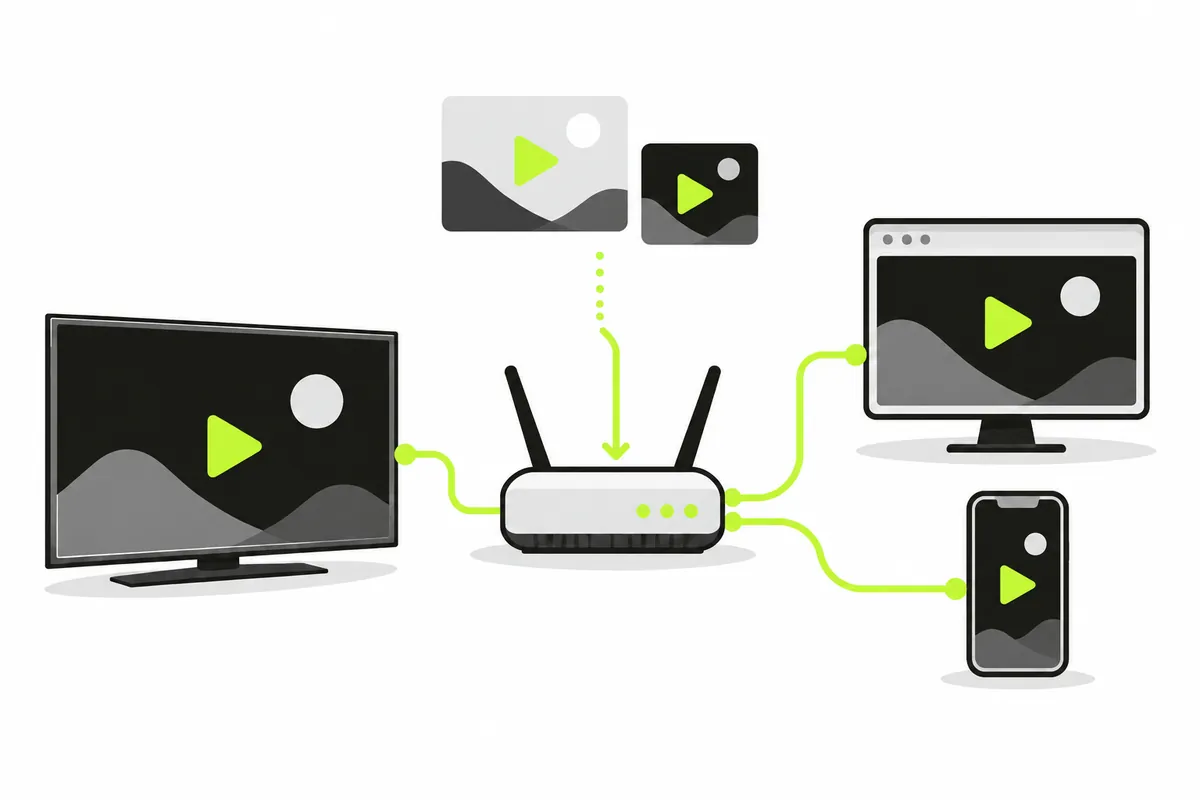
What IPTV describes
IPTV describes a delivery method rather than one particular company, channel package or application. A provider might deliver live television, recorded programmes, or both. Some IPTV systems operate inside a managed network; other streams are available over ordinary internet connections. The name alone does not tell you which player, format or account a source requires.
Live content and recordings
A live IPTV stream follows the broadcaster's current output. A recording can start from an earlier point if the source makes that available. A player cannot create catch-up television from a live address alone. Check the provider's documented features instead of assuming every IPTV interface includes programme guides, recording or replay.
Keep three parts separate
The IPTV service supplies content
The broadcaster or provider controls the actual media. It decides availability, access requirements and geographic restrictions. If an IPTV service requires an account, use its supported access method. A general browser player does not replace that subscription or account workflow.
The playlist organizes addresses
An IPTV playlist is usually a text list containing media URLs and optional names or groups. The list might live on one host while each channel comes from another. A small file can reference hundreds of streams without storing any video itself. A useful channel name does not prove that its address is current.
The IPTV player opens media
iiPTV reads your M3U file or URL, displays its entries and attempts compatible browser playback. It does not supply a TV channel package. This distinction answers a common buying question: choosing an IPTV player is different from choosing the service that supplies your programmes.
Follow the browser playback path
The browser first reads the playlist. After you select a channel, it contacts that channel's media host. Depending on the format, playback may involve a video file or an HLS manifest with additional resources. Apple's HLS overview describes this web streaming technology; it is one possible delivery path, not another name for IPTV as a whole.
Those stages explain why an IPTV playlist can import correctly while one channel fails. The text response was readable, but the selected media could be unavailable, restricted or incompatible. Browser decoding and source access both matter; replacing a working playlist will not repair an expired stream.
What you need to watch IPTV
A source you are permitted to use
Start with a broadcaster or another identifiable provider. Read its instructions for external players. A website's embedded video is not automatically a reusable IPTV URL, and a publicly visible link does not establish redistribution rights. Choose a documented playlist rather than copying an unexplained channel collection.
A compatible browser and connection
You need a browser that can decode the stream's audio and video, plus a connection that can sustain playback. Use genuine HTTPS sources on the published HTTPS website. A playlist can mix supported and unsupported protocols, so inspect the selected entry rather than treating the entire list as one format. Our compatibility page records implementation boundaries and actual test environments.
Open your first IPTV playlist
- Keep the original M3U file or published URL so you can return to the source.
- Open the browser player and choose URL or file import.
- Paste the direct playlist address, or select the local text file.
- Import, inspect channel names and use a group or search to narrow the list.
- Select one channel and press Play if the browser requires an interaction.
No registration is needed. File import reads the text locally; stream playback still contacts its remote host. Start with one entry before evaluating a large IPTV list. This gives you a clear result to compare with the player's controlled demo, instead of changing several variables at once.
Diagnose one failing channel
An example of separating the stages
Imagine an IPTV list imports and shows twenty channels. The demo plays, nineteen entries start, and one stays on an error state. That is a diagnostic example, not a recorded test of a real channel package. The evidence points toward the individual media address or its access requirements, rather than a completely broken importer.
Now change the example: no entries appear, and opening the supplied URL shows a GitHub interface. The input is probably a preview page rather than playlist text. The corrective action belongs to import troubleshooting; changing video codecs would not address that response.
Browser policies can also pause automatic playback. Pressing the media control is a sensible first check; MDN documents the play() permission behaviour. If channel names appear but playback still fails, use the playback troubleshooting guide to check the source layer.
Privacy, permissions and your next step
Your parsed IPTV list and selected channel are cached in this browser across refreshes and later visits. Clear in the player or clearing website storage removes the cache, which may include private media URLs. The browser directly requests remote playlists and selected media; those hosts can see network requests and apply their own policies. Keep private IPTV URLs and access tokens out of public screenshots or reports.
Before choosing another IPTV tool, write down the input you actually have: a text file, a direct stream address, or a provider login. These are different starting points. A login belongs in the provider's supported interface; a browser playlist importer expects media locations. This simple check can prevent buying or installing another player when the missing piece is source access rather than the playback interface.
For the text structure and a practical example, read M3U playlists explained. Choose your source, import one list, and test one entry. That sequence gives you a useful IPTV result without assuming the player includes channels or guarantees every source.